
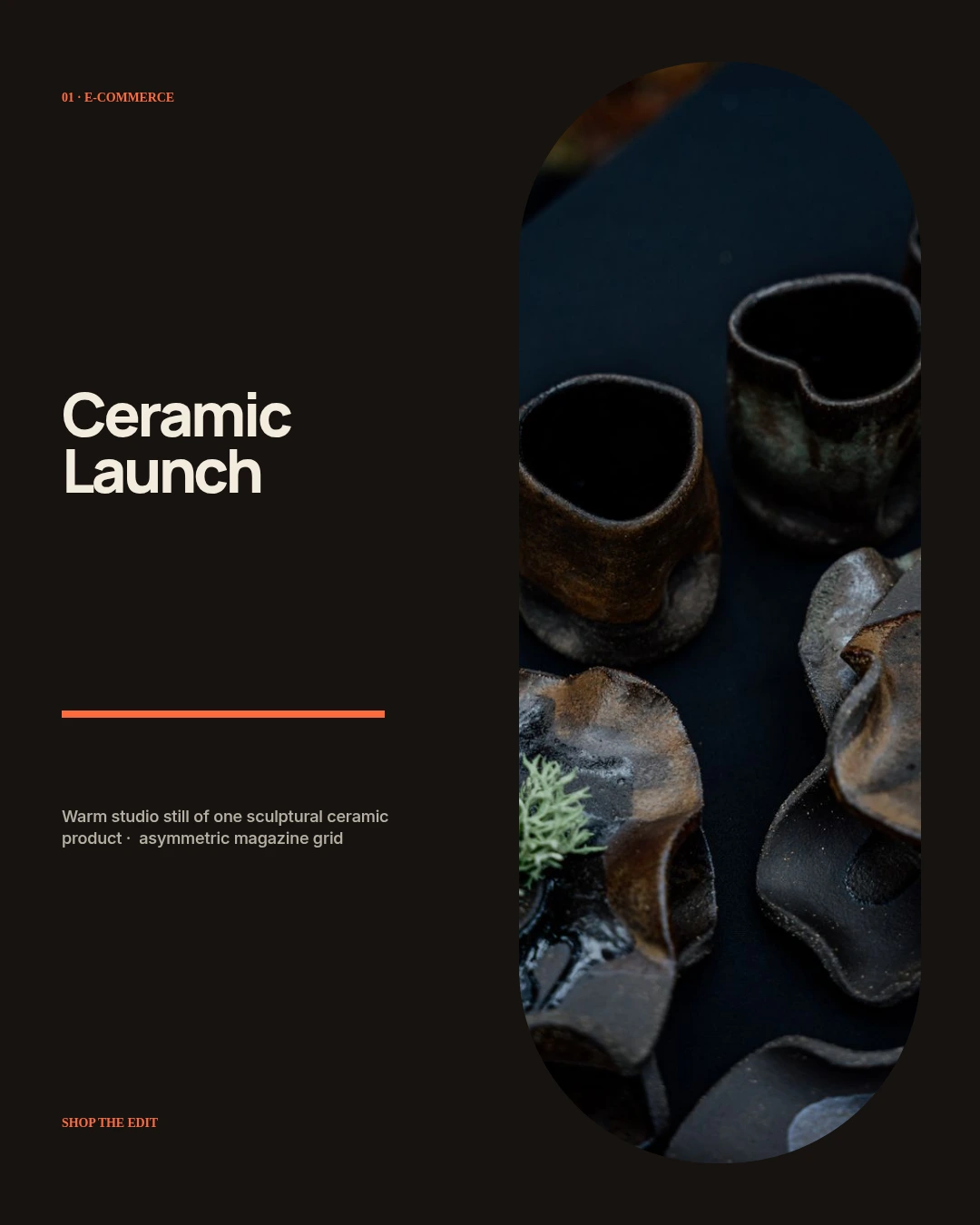
 Editorial
IMAGE STUDIODesign layered images.
Design layered images.
Keep the source editable.
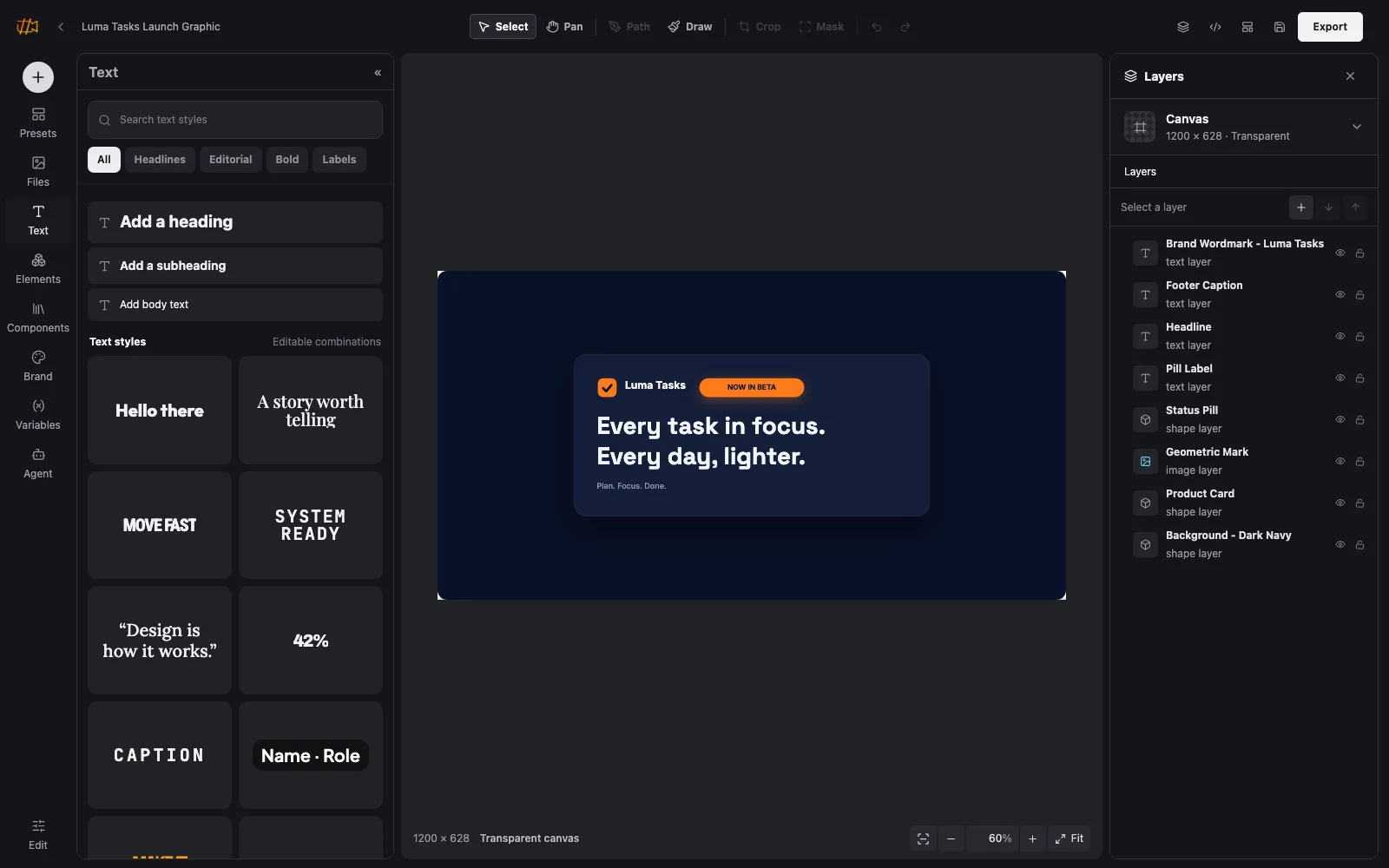
Build campaign visuals, product graphics, covers and social formats on a direct multi-layer canvas. Media, typography, vectors, masks and effects remain editable for every later version.
01Direct canvas02Masks and vectors03Dynamic variants
BUILT FOR THE ACTUAL WORKSimple canvas controls on the surface.
Simple canvas controls on the surface.
A real layer system underneath.
Click an element, move it directly and change only the controls that apply. The layer panel stays available for stacking, grouping and compositing while presets and ready-made resources keep the first draft fast.
- No timeline added to image work
- Transparent output remains transparent
- Every AI draft stays editable
01 · THE CANVAS
Compose visually. Inspect the exact layer when needed.
The canvas is the center of the image workflow. Click any visible element to edit it, use the layer panel for precise stacking and keep groups available for compositions that truly need them.
Explore the image canvas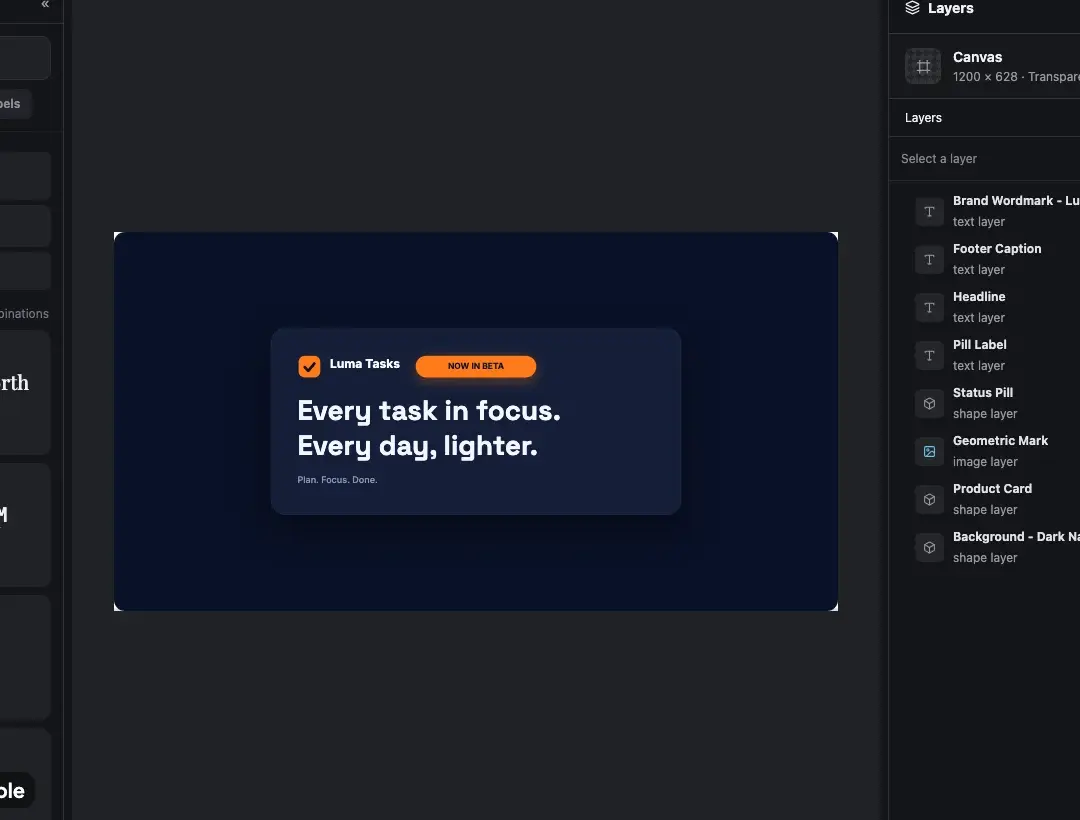
CropMaskColorVector
02 · COMPOSITING
Build depth with masks, effects and real transparency.
Use layer masks, clipping and erase roles to control exactly what remains visible. Gradients preserve proportional alpha, inverted masks reveal only the overlap and exports keep transparent pixels intact.
See masks and layer editingTransparent cutoutMask the layer.
Keep the composition.
Keep the composition.
LayersHeadlineCutout maskColor fieldPhotography
03 · READY-TO-USE RESOURCES
Start from something useful, not an empty toolbox.
Use curated image presets, typography, components, stock photography, vectors, shapes, device frames, palettes and gradients. Drag them onto the canvas, then change every relevant property in the same inspector.
Explore media and brand resourcesPhotos and assetsSearch
PhotographyShapesFramesType
Editorial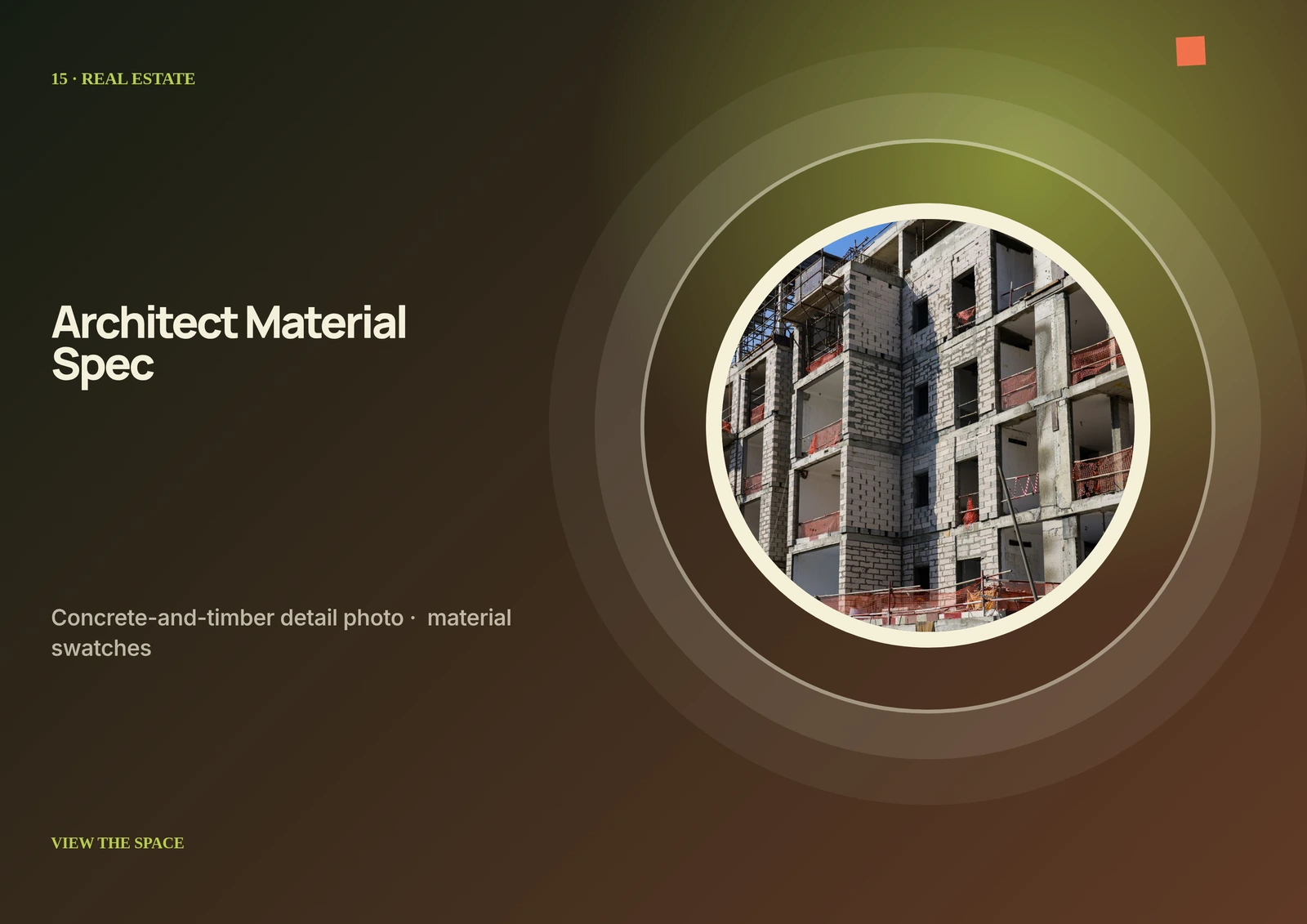 Architecture
 Product
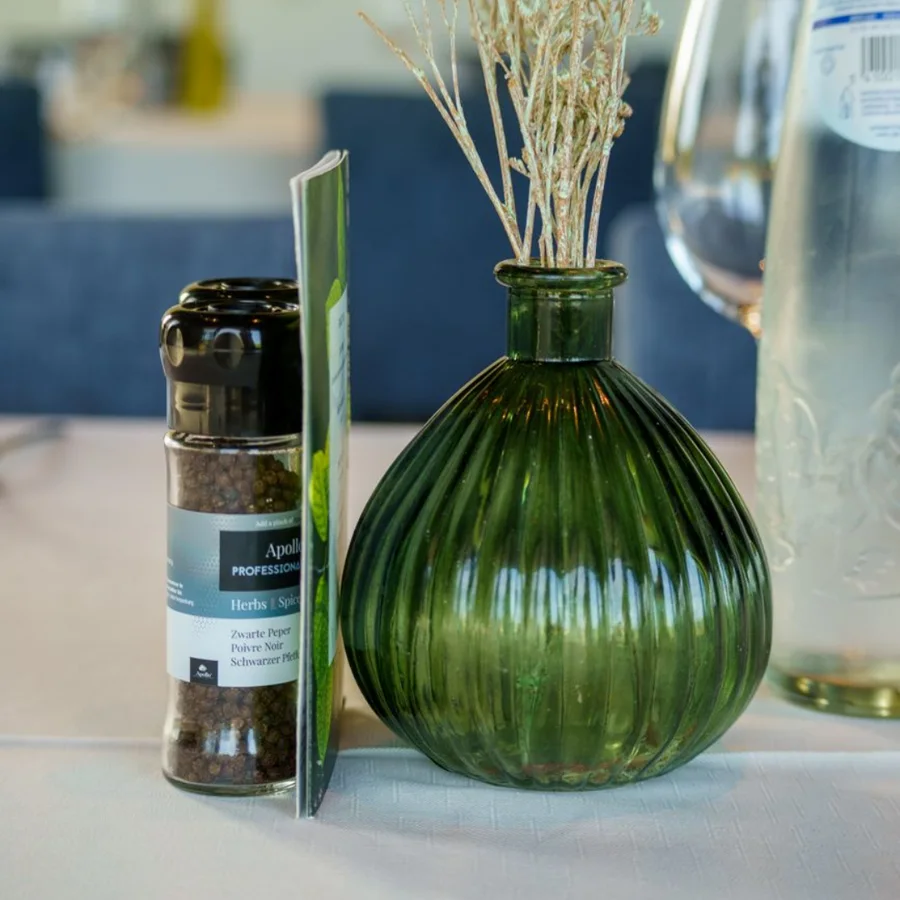 Food
Food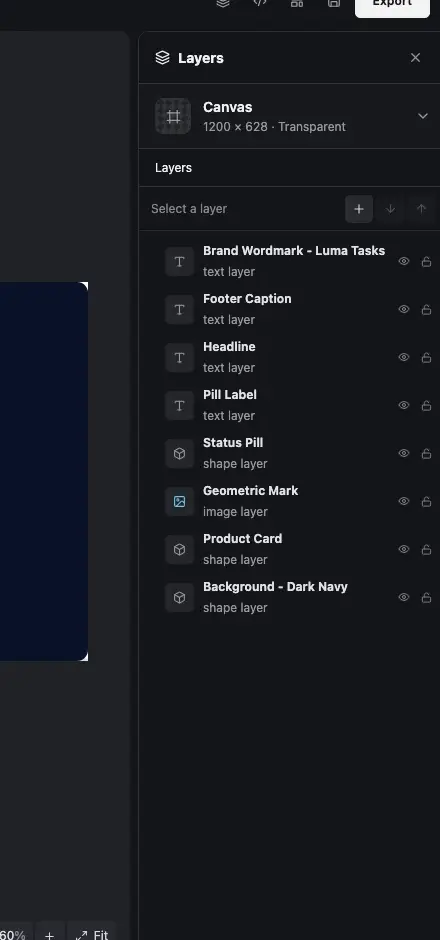 Every inserted resource becomes an editable layer
04 · BUILT-IN MEDIA PRODUCTION
Create the missing image and keep designing without changing tools.
Generate campaign imagery, remove backgrounds and create visual variants directly beside the editable canvas. The same project media system powers AI video, voiceover, captions, music and sound effects when the work continues in Video Studio.
Explore AI image creationRemove the background and create three launch directions for these earbuds.Generate 3
 Original photo
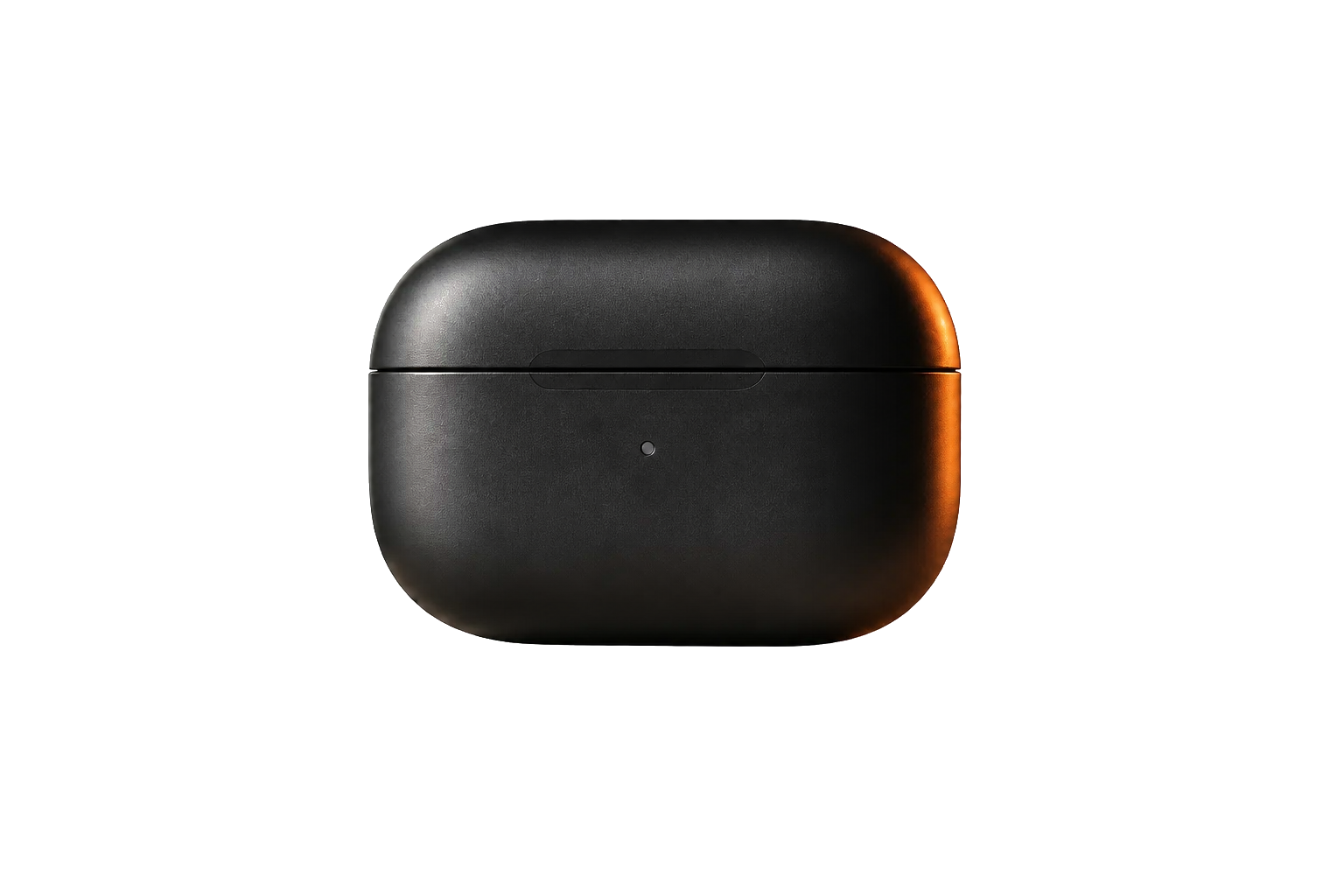 Background removedLaunch cardProduct detailSocial story
One source becomes reusable media and three editable campaign directions.
05 · AI DIRECTOR
Ask for the result. Keep the editable project.
Describe a complete visual or a focused change. The Director can build a layered draft, use stock or generated imagery, remove a background and let you preview image changes before applying them.
Meet the AI DirectorAI Director
Create three campaign directions from this product image. Keep the brand colors and make the offer variable.
1Draft2Review3Editable
06 · VARIABLES AND TEMPLATES
Design one strong source. Change only what should change.
Bind copy, numbers, colors and media to understandable variables. Preview alternative values in Studio, save the finished project as a template and generate one or many reviewed variants without flattening the design.
See templates and variablesTemplate inputsheadline Textmedia Imageaccent Colorprice Number
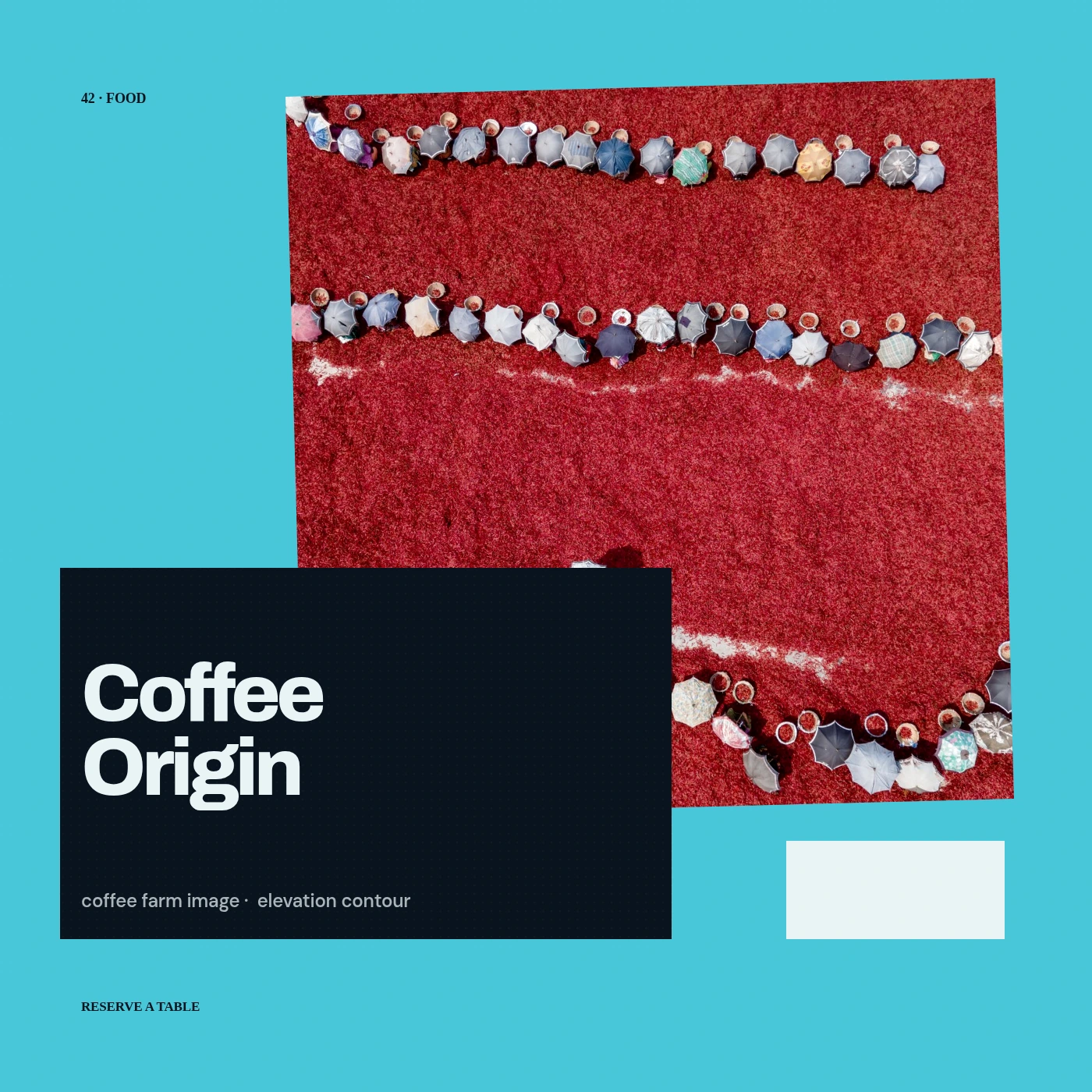 Morning drop€24
 New spaceFrom €950
 Studio sound€189Studio edition€68
THE IMAGE TOOLBOXEveryday controls first.
Everyday controls first.
Production depth when needed.
The inspector changes with the selected layer, so an image never shows audio controls and a text layer never hides its typography behind generic settings.
Direct manipulation
Select, move, rotate, resize and align visible elements without leaving the canvas.
Visual crop and media replacement
Reframe photography directly, preserve proportions and swap the source without rebuilding the layout.
Masks, erase roles and blending
Control transparency between layers, invert the visible region and keep alpha intact in PNG and WebP.
Vectors, paths and shapes
Start from a polished SVG resource or edit anchor points and curves for a custom form.
AI image tools
Generate supporting imagery, remove backgrounds and turn a brief into a previewable layered direction.
Reusable visual systems
Connect colors to project palettes and expose only approved text, media, number and color inputs.
FROM COMPOSITION TO SYSTEM
One canvas can stay a design or become the source for every size.
- 01
Choose a format
Start with social, display, print or a custom transparent canvas.
- 02
Compose in layers
Combine typography, photography, vector shapes, masks, gradients and effects.
- 03
Export every variant
Download the artwork or turn it into an image template for automated generation.
IMAGE STUDIO QUESTIONS
What remains editable after the first export?
01Does the editor support transparent images?
Yes. Transparent canvases and alpha-preserving PNG or WebP output are supported.
02Are image projects separate from video?
They have a focused editing experience but share the same underlying layer, variable, media and rendering concepts.
03Can image templates be rendered through the API?
Yes. Template inputs can be inspected first and then supplied for individual or bulk image renders.
Build the visual.
Keep the source alive.
Create the complete layered image before choosing an export, a reusable template or an automated variant.
Open the Image Studio