
A timeline that stays
clear as the project grows.
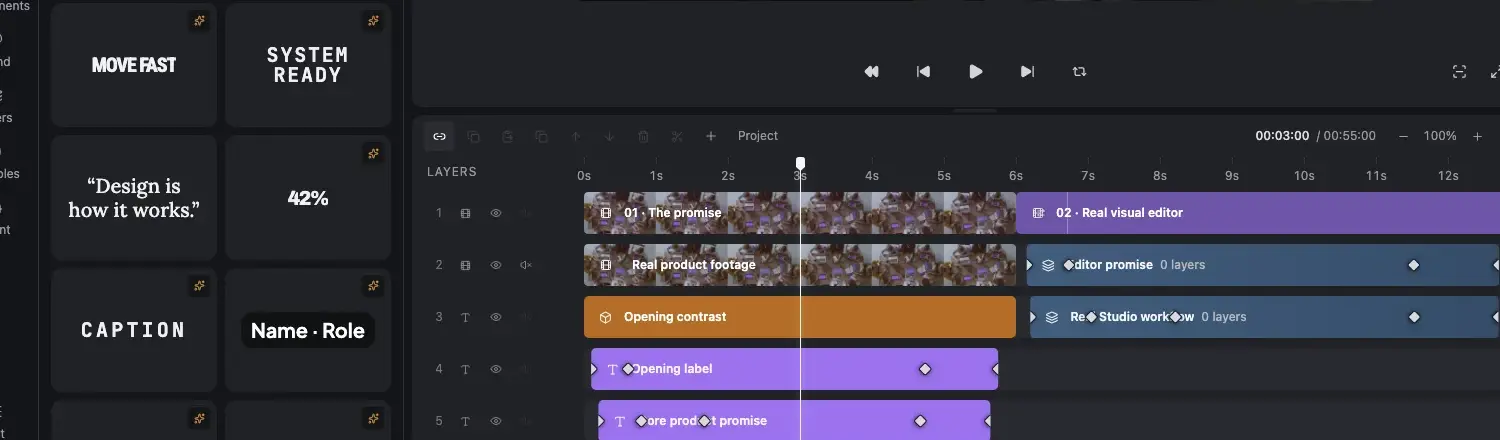
Arrange footage, audio, captions, groups and motion in one synchronized view with the canvas and inspector.
The JsonCut timeline is the temporal source of truth for video projects, from a single clip to nested motion scenes.
Tracks + groups
Frame-accurate timing
The JsonCut timeline is the temporal source of truth for video projects, from a single clip to nested motion scenes.
Enough control for real work.
Only when you need it.
Arrange footage, audio, captions, groups and motion in one synchronized view with the canvas and inspector.
Media types stay separated
Video, image, audio, captions, canvas and motion layers use recognizable tracks instead of collapsing into one undifferentiated lane.
Complex scenes remain compact
Expand a group directly in the timeline, edit a child layer, then collapse the complete motion system back to one readable row.
Timing remains direct
Drag a clip, trim either edge and inspect the exact timestamp while the canvas, inspector and playhead stay in sync.
Motion appears where it happens
Visible markers expose animated states on the relevant layer, including the properties and curve leading to the next state.
What makes visual timeline useful in real work.
Each capability remains connected to the same editable JsonCut project.
Edit where time is visible
Move and trim media, layers and grouped scenes without translating timing into code.
Open detail only when needed
Expandable groups keep complex motion graphics compact until you need their child layers.
Keep playback understandable
The playhead, selected layer and inspector remain synchronized while you seek and review.
Media types stay separated.
Motion appears where it happens.
Media types stay separated
Video, image, audio, captions, canvas and motion layers use recognizable tracks instead of collapsing into one undifferentiated lane.
Complex scenes remain compact
Expand a group directly in the timeline, edit a child layer, then collapse the complete motion system back to one readable row.
Motion appears where it happens
Visible markers expose animated states on the relevant layer, including the properties and curve leading to the next state.
Short-form edits.
And the work after it.
Know what the feature changes.
01Is this available in both image and video projects?
The page states where a capability applies. Shared controls use the same visual language in both editors.
02Does it remain editable after using AI?
Yes. The assistant changes ordinary project layers and versions, so you can inspect and refine the result.
03Can the same result be automated?
Yes. Projects can become typed templates or be rendered through the focused V2 API and MCP surface.
See the control.
Keep the result editable.
Start a free project and use the same feature in the image or video workflow it belongs to.
Start creating free